Working with multiple screens, I often use several windows in Visual Studio. For a while now, I’ve been annoyed by all the miscellaneous windows forcing themselves on top so I couldn’t open a browser on one screen and switch to the code on another screen without the window on the browser’s screen popping up to obscure the browser.
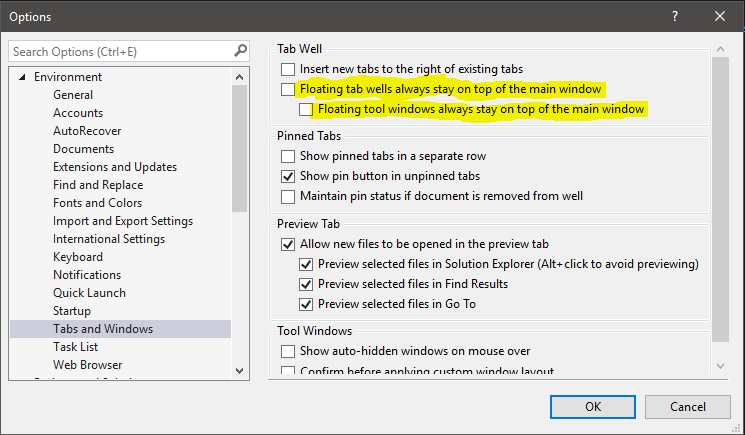
I finally took the time to figure this one out, and the answer is right there in the options menu. Deactivate both of the highlighted options and your windows are free to move around as you wish. They even get their own icon on the task bar, if you have a task bar on all your screens!
1 Comment
In new versions of Visual Studio (like 2026 and maybe 2022 as well), the equivalent setting is in Environment > Windows > Floating Windows. When setting “These floating windows are owned by the main window” to “None” (from the dropdown) they will appear in the Taskbar as their own windows and will not come to the front when the main window is focused.